

Home Page MyServer
MyServer
What is MyServer ?
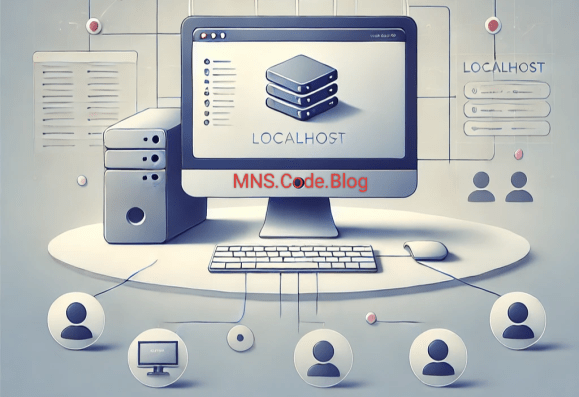
MyServer is your own localhost server. you can setup PHP, Apache web servers on your android devices or linux like Ubuntu etc. MyServer is Developed for android terminal like Termux or GNURoot Debian terminal. You can setup your localhost server and access from internet. you can host your website and test your website.
How to use MyServer ?
CLI Use :
Example : myserver -s -ng localhost 8080 /home/www
myserver -s <hostname/ip> <localhost_port> <document_root_path> to start default localhost server.
myserver -s -ng <hostname/ip> <localhost_port> <document_root_path> to start Nginx web server.
myserver -s -php <hostname/ip> <localhost_port> <document_root_path> to start php localhost server.
myserver -s -py <hostname/ip> <localhost_port> <document_root_path> to start python localhost server.
myserver -h <domain_name> <localhost_port> <http_port/https_port> to access localhost server on internet.
myserver -db [start/stop] to start/stop mysql database server.
myserver -s apache to start apache web server.
myserver update to update MyServer.
myserver rm -t to uninstall MyServer.
myserver start to start MyServer menu.
myserver -s to start Server that was previously running.
myserver -h to access from web that was previously accessed.
Menual Use :
- Type 1 : to start your localhost web server.
- Type 2 : to access your website from internet.
- Type 3 : to start MySQL Database server.
- Type 4 : to start menual localhost server.
- Type 5 : to menual host.
- Type 6 : to update MyServer.
- Type 7 : for server setting.
- Type 8 : to about us.
- Type x : to exit.
MyServer Support :
- Apache2 server.
- Nginx server.
- PHP server.
- Python web server.
- MySQL Database server.
MyServer is available for :
On Windows
- Download MyServer:
- Visit the official MyServer website or search for the latest version on GitHub or SourceForge.
- Download the Windows installer.
- Install the Application:
- Run the downloaded
.exefile. - Follow the installation wizard:
- Choose the installation directory.
- Agree to the terms and conditions.
- Select optional components (if prompted).
- Run the downloaded
- Launch MyServer:
- After installation, launch MyServer from the Start Menu or Desktop shortcut.
- Configure Settings:
- Open the configuration file (
myserver.conf) or use the GUI to set the document root, port, and other preferences.
- Open the configuration file (
On Linux
Option 1: Using Package Manager (if available)
- Open a terminal.
- Run the following command:
sudo apt-get install myserver(Replaceapt-getwith your distribution’s package manager, e.g.,yumordnf.)
Option 2: Build from Source
- Install dependencies:
sudo apt-get update sudo apt-get install build-essential git
- Clone the repository:
git clone https://github.com/myserver/myserver.git cd myserver
- Build and install:
make sudo make install
- Start MyServer:
myserver
On macOS
- Install Homebrew (if not already installed):
/bin/bash -c “$(curl -fsSL https://raw.githubusercontent.com/Homebrew/install/HEAD/install.sh)”
- Install MyServer using Homebrew:
brew install myserver
- Launch MyServer:
myserver
On Termux
Open the termux app and type following commands.
apt update
apt install git
cd MyServer
chmod +x install
sh install if not work than type ./install
Now MyServer is installed successfully. Just only type myserver start to start My Server.
Discover more from MNS.Code.Blog
Subscribe to get the latest posts sent to your email.

 MNS.Code.Blog